Quick solution
Try this first:
- 1Click
Restart RustDeskon the rental page. - 2Click
Refresh Password. - 3Copy the new password.
- 4Try connecting again through the desktop client.
Connection passwords are one-time. If you reconnect, the old password may no longer work.
Error: target device is offline or does not exist
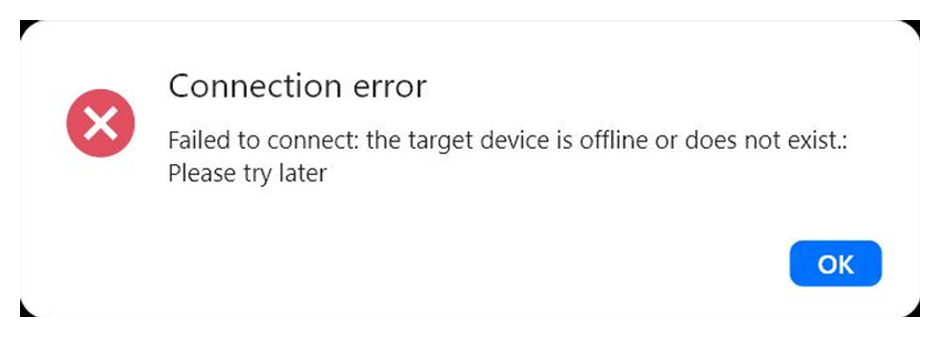
This usually means the desktop client is not configured correctly. Open the rental page and click Setup Guide. Follow the setup guide, then try connecting again. Do not immediately reboot or clear data for this error.
Error: OS error 10054
OS error 10054
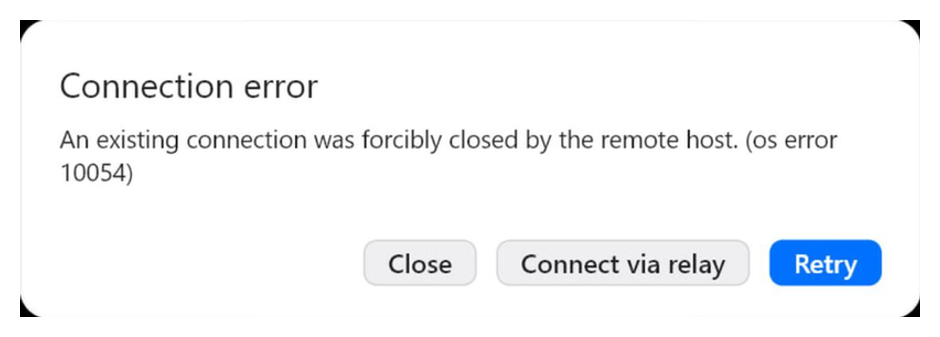
This often happens when the device uses mobile internet (LTE/5G).
Click Connect via relay in RustDesk. This usually solves the issue.
If it does not help: click Restart RustDesk, then Refresh Password, and try again.
Error: Remote desktop is offline
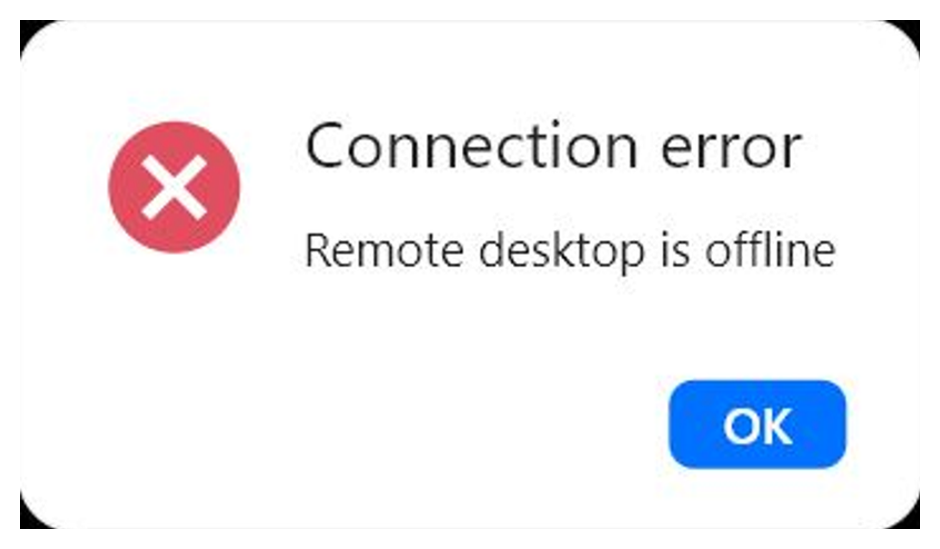
The remote access service on the phone is temporarily unavailable.
- 1Click
Restart RustDesk. - 2Try connecting again.
- 3If it does not help, click
Reboot Deviceand wait until the device comes back online.
When to contact support
Contact support if: the new password does not work, the device remains offline, Connect via relay does not help, or you keep seeing the same error.
Please send: Device ID, RustDesk ID, screenshot of the error, your rental plan, and a short description.