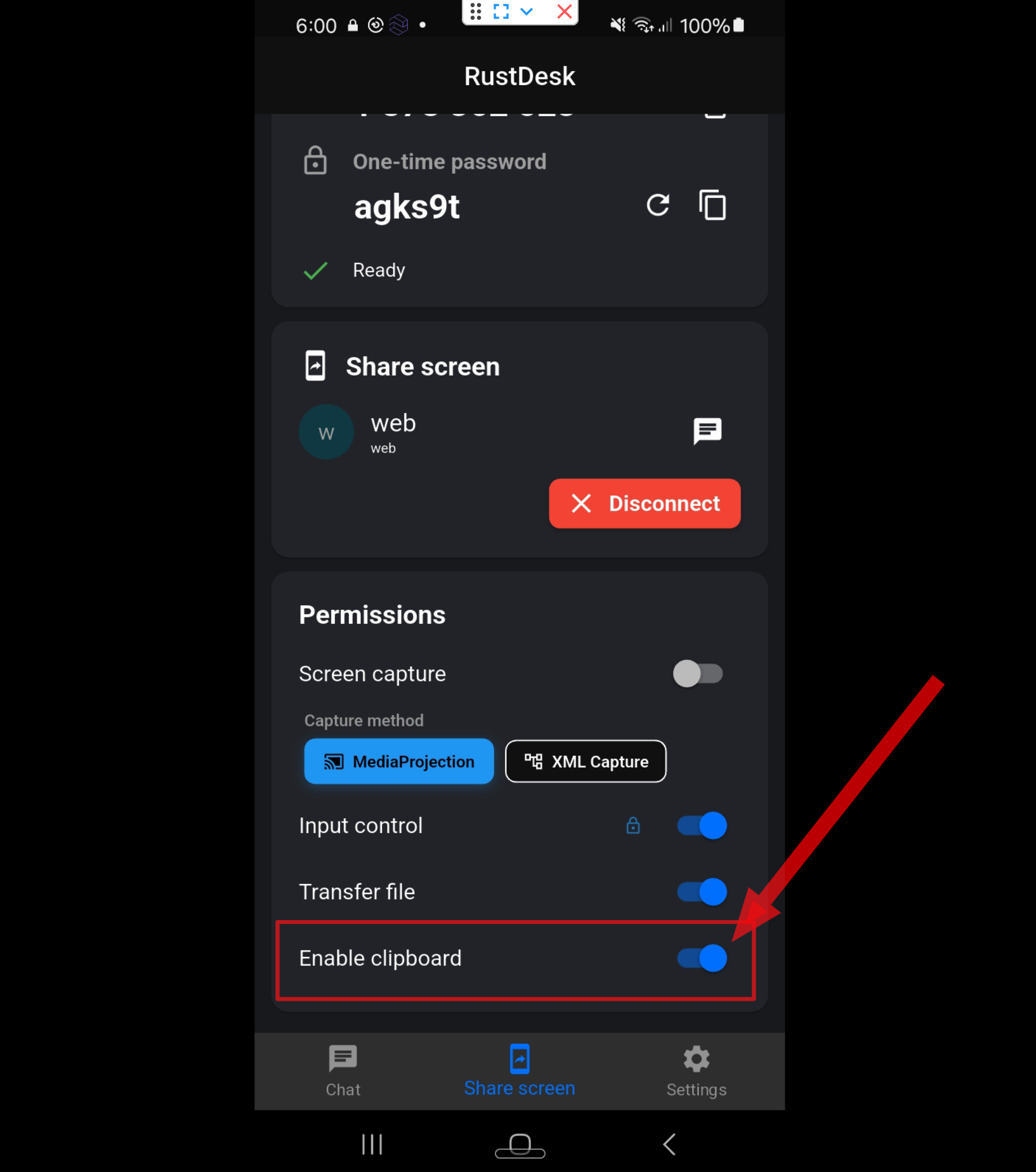
First, check “Enable Clipboard” in RustDesk
RustDesk has a setting called Enable Clipboard. If copy and paste doesn’t work, first make sure this option is turned on in the RustDesk app on the phone (the rented device).
If Enable Clipboard is off, copied text may not be transferred to the remote phone.
DroidDesk supports clipboard sharing between your computer and the remote Android phone.
This means you can copy text on your computer and paste it into the rented phone during your remote session.
How the clipboard works
When you copy text on your computer, the copied information is transferred to the remote phone’s clipboard.
On the phone, the copied text may appear inside the keyboard’s Clipboard section. From there, you can select it and insert it into any text field.
What you can copy and paste
Paste the text into apps, websites, forms, or browsers on the phone.
How to paste text on the phone
Depending on the keyboard installed on the device, the Clipboard button may look slightly different.
If the clipboard isn’t working
Video guide
You can also watch the video guide below.