
Quick fix
Try this one first:
- 1Click
Restart RustDeskfor the rental page. - 2Click
Refresh Password. - 3Copy the new password.
- 4Try connect again from the desktop client.
The connection passwords na one-time use. If you connect back, the old password fit no work.
Error: the target device dey offline or e no exist
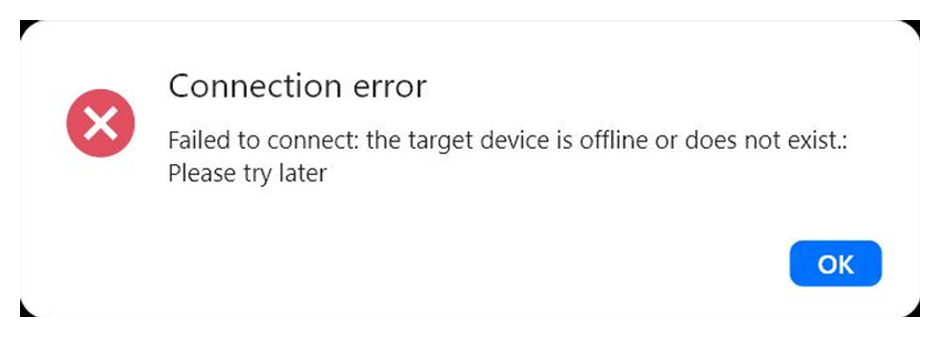
Normally this one mean say the desktop client no dey set up well. Open the rental page and click Setup Guide. Follow the setup guide, then try connect again. No restart or wipe the data one time because of this error.
Error: OS error 10054
OS error 10054
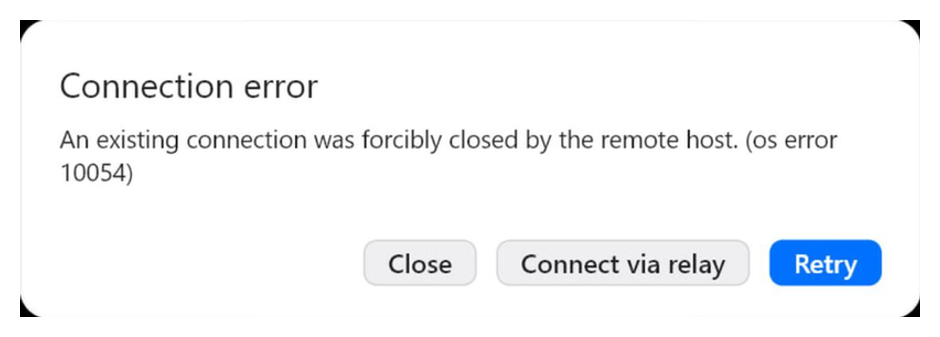
This one dey usually happen when the device dey use mobile internet (LTE/5G).
Click Connect via relay for RustDesk. This one dey usually fix the problem.
If e no work: click Restart RustDesk, then Refresh Password and try again.
Error: Remote desktop is offline
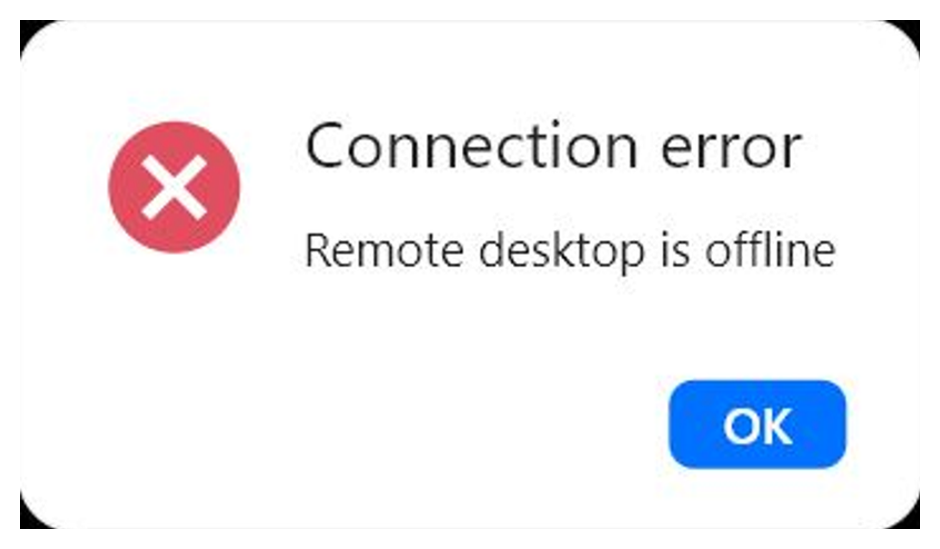
The remote access service of the phone no dey available for the moment.
- 1Click
Restart RustDesk. - 2Try connect again.
- 3If e no work, click
Reboot Deviceand wait make the device come back online.
When to contact support
Contact support if: the new password no dey work, the device still dey offline, Connect via relay no dey help or you still dey see the same error.
Send: Device ID, RustDesk ID, screenshot of the error, your rental plan and short description.