
First, check “Enable Clipboard” for RustDesk
RustDesk get one option wey dem call Enable Clipboard. If copy and paste no dey work, first make sure say this option dey on for the RustDesk app for the phone (the rented device).
If Enable Clipboard dey off, the text wey you copy fit no transfer go the remote phone.
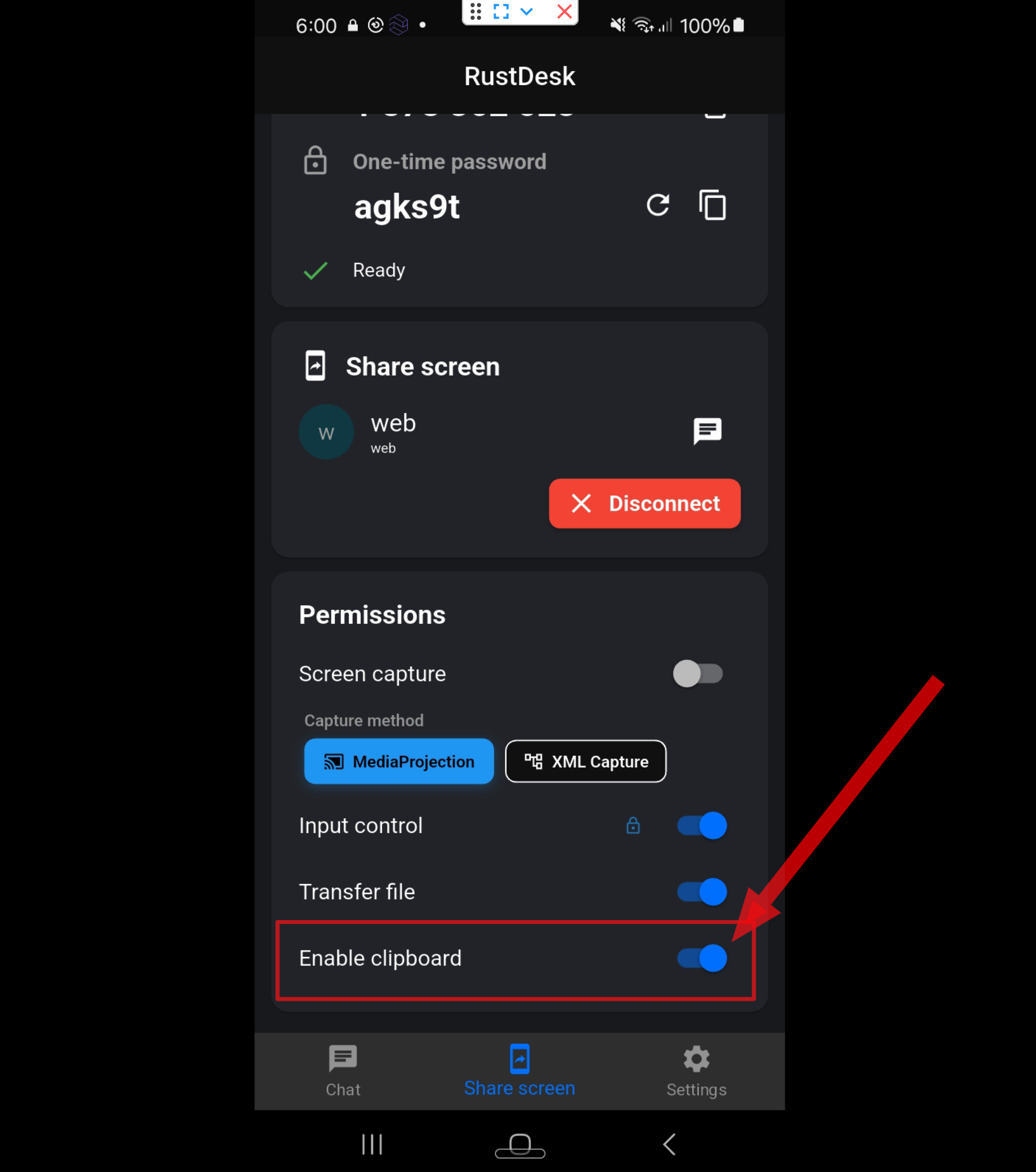
DroidDesk dey support clipboard sharing between your computer and the remote Android phone.
This one mean say you fit copy text for your computer and paste am for the rented phone during your remote session.
How the clipboard dey work
When you copy text for your computer, the copied information dey transfer go the clipboard of the remote phone.
For the phone, the copied text fit show for the Clipboard section of the keyboard. From there you fit select am and put am for any text field.
Wetin you fit copy and paste
Paste the text for apps, websites, forms or browsers for the phone.
How to paste text for the phone
Based on the keyboard wey dey installed for the device, the Clipboard button fit look small different.
If the clipboard no dey work
Video guide
You fit also watch the video guide for below.