
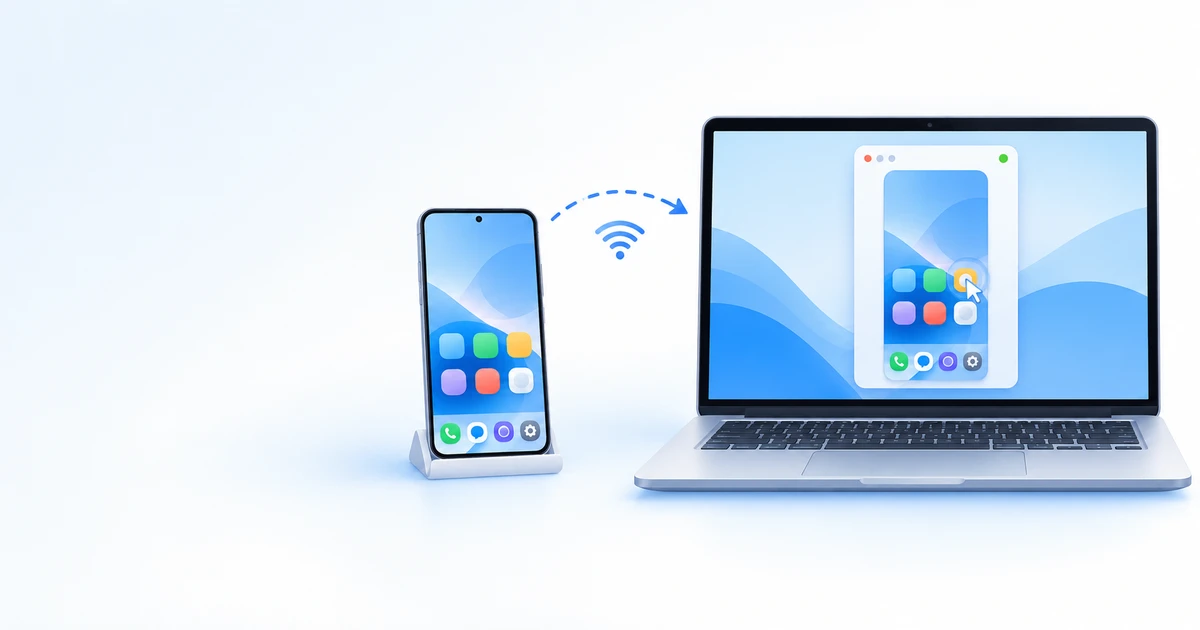
Remote control of an Android phone is useful when you want to use apps on a larger screen, help family members with settings, test an app or access a phone you left at home.
Below are five practical methods, from the free scrcpy tool to access over the internet. All are intended for your own devices or devices whose owners have given their consent.
Which method should you choose?
| Method | Control from | Connection | Price | Key details |
|---|---|---|---|---|
| scrcpy | Windows, macOS, Linux | USB or Wi-Fi on the same network | Free | No app needed on the phone; requires USB debugging |
| Phone Link | Windows | Wi-Fi on the same network | Free | Phone apps on your PC are available only on supported models |
| TeamViewer | PC, Mac or another phone | Internet | Free for personal use | Unattended access is not supported on every model |
| AnyDesk | PC, Mac or another phone | Internet | Free for personal use | Some models require a plugin |
| DroidDesk rental | Browser | Internet | From $5 per hour | A rented real Android in the country you need, rather than your own phone |
Method 1. scrcpy: free control over USB or Wi-Fi
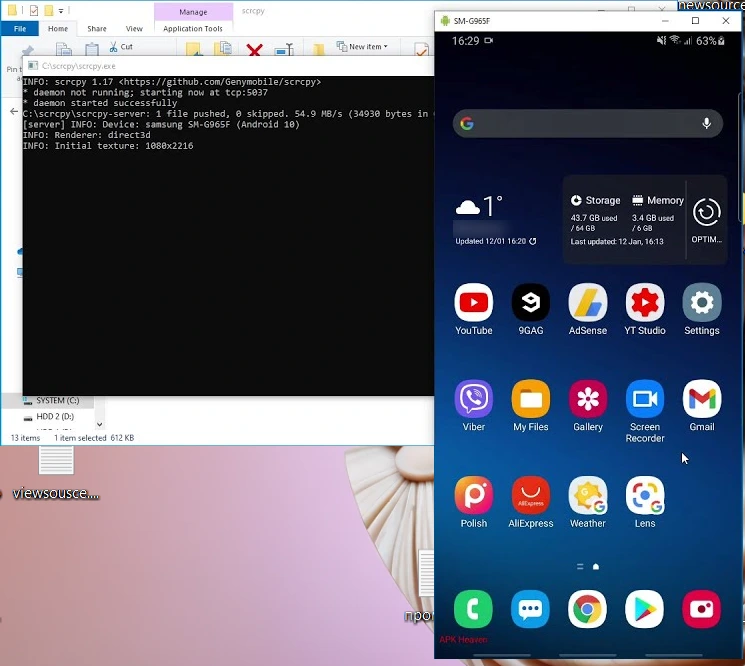
scrcpy is a free, open-source tool for Windows, macOS and Linux. You do not need to install anything on the phone or have root access. Audio forwarding is supported on Android 11 and later.
- On the phone, open Settings → About phone and tap Build number seven times to enable Developer options.
- In Developer options, enable USB debugging.
- Install scrcpy on your computer: download the archive from GitHub for Windows, run brew install scrcpy on macOS, or install a package from your distribution’s repository on Linux.
- Connect the phone with a cable and allow debugging in the prompt on the phone’s screen.
- Launch scrcpy: the phone’s screen opens in a window, and you can control it with your mouse and keyboard.
To work without a cable, the phone and computer must be on the same Wi-Fi network. Connect the phone by cable once and launch scrcpy with the --tcpip option; you can then disconnect the cable.
Method 2. Phone Link for Windows
Phone Link is built into Windows and displays your phone’s messages, calls, photos and notifications on your computer. Supported Samsung, HONOR, OPPO, ASUS and vivo models also let you open phone apps directly on your PC.
- Open Phone Link on your computer and select Android.
- Install Link to Windows on your phone and scan the QR code displayed on your computer.
- Grant the permissions on the phone and wait for it to sync.
Requirements: Windows 10 (October 2022 update or later) or Windows 11, Android 10 or later, and both devices on the same Wi-Fi network.
Method 3. TeamViewer or AnyDesk: access over the internet
These tools work over the internet, so the phone can be anywhere. Both offer free versions for personal use.
TeamViewer
- Install TeamViewer Host on the Android phone and allow it to display over other apps.
- Sign in to your TeamViewer account and link the phone to it.
- Open TeamViewer on your computer or another phone, find the device in the list and click Connect.
Not every model supports unattended access. If the phone asks for permission each time, use TeamViewer QuickSupport.
AnyDesk
Install AnyDesk on the phone and computer, enter the phone’s address on the computer and accept the connection on the phone. For unattended access, set a password in AnyDesk’s settings on the phone. Some models require an additional control plugin; AnyDesk will prompt you to install it.
Can you control Android through Chrome Remote Desktop?
No. Chrome Remote Desktop on Android works in only one direction: you use your phone to control a computer. To control the phone itself, use one of the methods above.
How to control Android from an iPhone or another Android
Install TeamViewer Remote Control or AnyDesk on the second phone and connect to the Android device just as you would from a computer. Control is less convenient on a small screen, so a computer is better for longer sessions.
When you need a phone other than your own
All the methods above work with a phone you already have. Sometimes you need something else: a different model for testing, an Android in a specific country with a local network connection, or a device that stays on around the clock. In that case, you can rent a real phone:
- Choose a model and country in the DroidDesk catalog. Phone catalog
- Choose a rental plan starting from 1 hour.
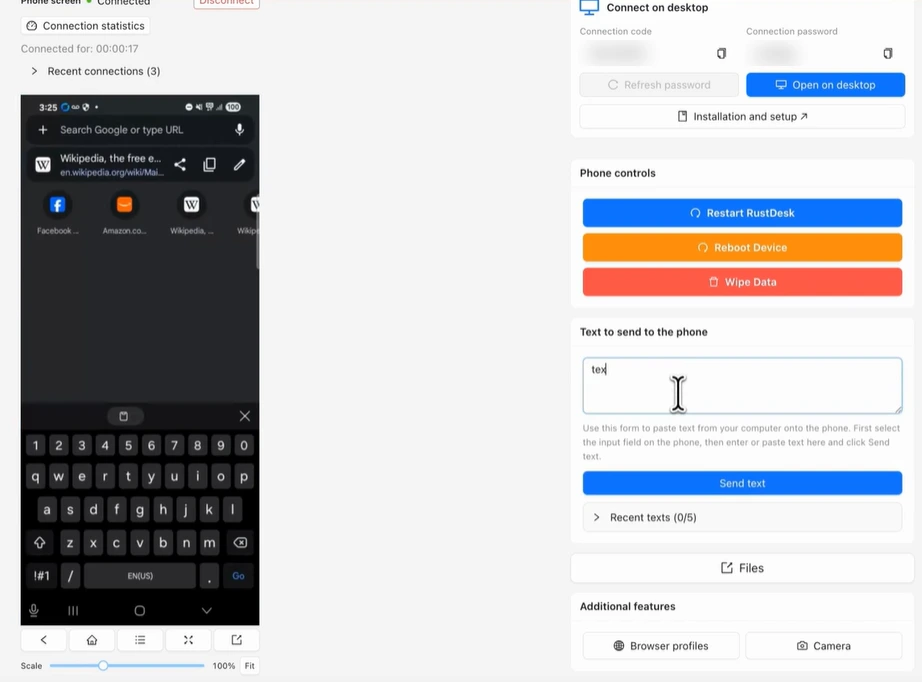
- Click Connect and control the phone in your browser: no installation required.
For an explanation of cloud phones and how they work, see what is a cloud phone.
Security
- Connect only to your own devices or with the owner’s consent. Secretly accessing someone else’s phone is a crime in many countries.
- Scammers often ask people to install AnyDesk or TeamViewer while pretending to be bank support. Never give access to strangers.
- For unattended access, use a strong password and enable two-factor authentication on your account.
- Turn off USB debugging when you do not need it.
Need a different Android model or a phone in another country? Rent a real device and control it from your browser from $5 per hour
Choose a phoneFrequently asked questions
How can I control Android from a computer for free?
The easiest option is scrcpy: it is free, works on Windows, macOS and Linux, and does not require an app on the phone. Windows users can also use the built-in Phone Link.
Can I control a phone without a cable?
Yes. scrcpy works over Wi-Fi on the same network, while TeamViewer and AnyDesk work over the internet from anywhere.
Can I control a phone with a broken screen?
Yes, through scrcpy, if USB debugging was enabled beforehand. Otherwise, enabling it without a working screen is usually not possible.
Does Chrome Remote Desktop work with Android?
Only as a remote control for a computer. You cannot control the Android phone itself through Chrome Remote Desktop.
How can I check whether someone has remote access to my phone?
Look through your installed apps for remote access tools, and check Accessibility and Device admin permissions. Remove anything you did not install yourself and change your passwords.