
An Android MCP server lets an AI client use a phone the way you do: it reads what's on the screen, taps, types, swipes and opens apps. You can run one on your own computer with a phone plugged in over USB, point it at an emulator, or connect to a hosted server that already sits in front of a real handset in another country.
Ask Claude Code to "open the app, sign in and check the onboarding screen" and you'll usually get a polite answer: it has no phone. Coding agents are good at files and terminals, but a mobile app only exists on a device. MCP is how you hand the agent one. The interesting decision isn't the protocol, though. It's which device ends up on the other side, because that decides what the agent can actually test or do.
- Prototyping on your own phone? A free local server over ADB (adb-mcp, Android-MCP, mobile-mcp) does the job.
- Quick UI checks while you code? An emulator with MCP resets in seconds, but it's still a virtual device.
- Need real hardware, a mobile network or another country? Use a hosted MCP on a real phone, such as DroidDesk AI phone automation.
What is an Android MCP server?
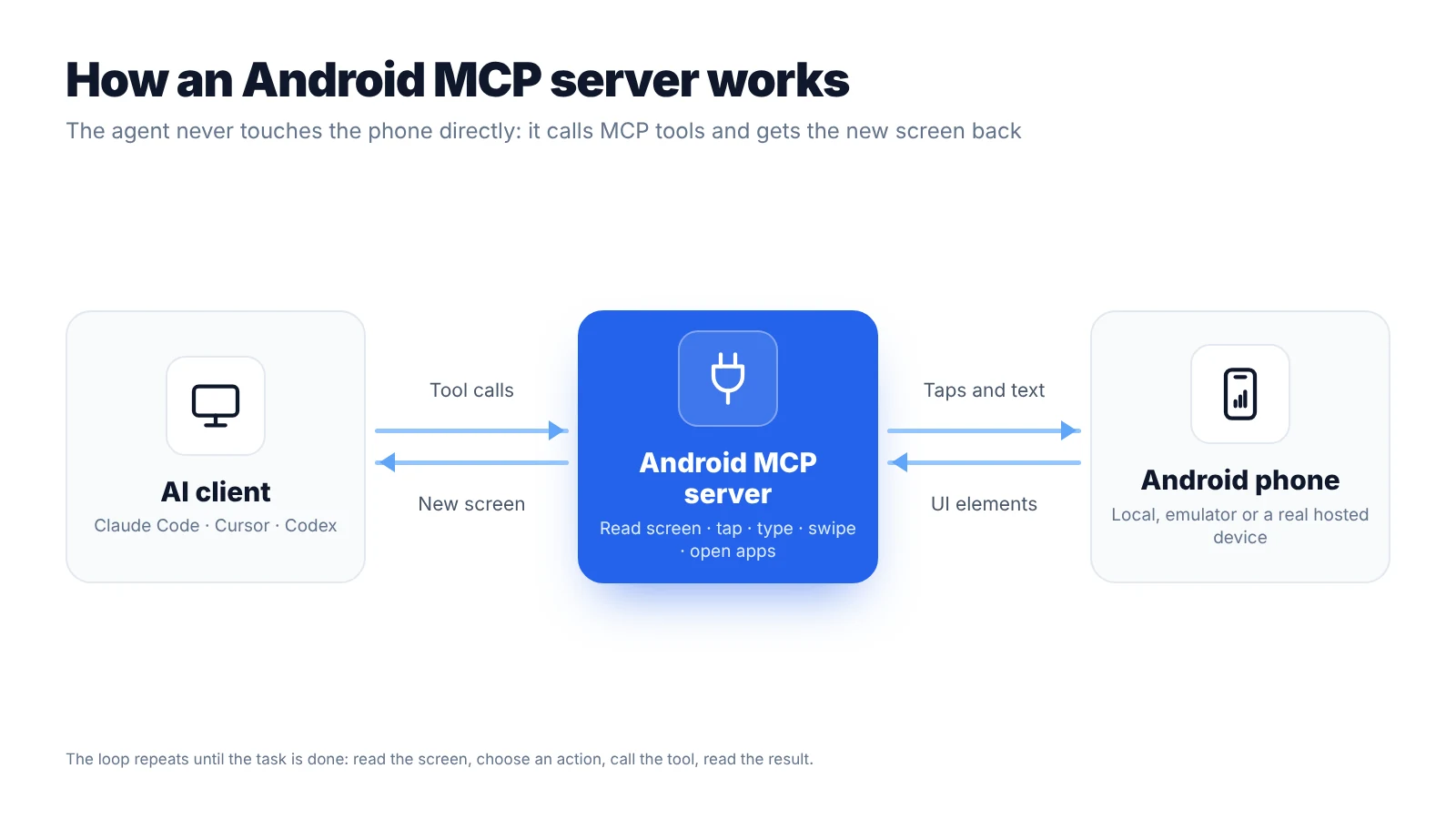
MCP (Model Context Protocol) is an open standard for connecting AI clients like Claude Code, Cursor and Codex to outside tools. An Android MCP server wraps a phone in a small set of those tools. You'll usually find four kinds:
- Reading the screen, either as a list of UI elements with text and coordinates or as a screenshot.
- Acting on it: tap, type, swipe, press Back or Home.
- Opening an app or a URL.
- Waiting until something specific appears.
From there the loop is simple. The model looks at the screen, picks an action, calls the tool, gets the new screen back and goes again. How well this works depends on two things. One is how clearly the server describes the screen. The other is whether the taps land the way they would for a person.
That second part is where the device starts to matter. A flow that runs fine on an emulator can fall apart on a phone with a real SIM, a carrier network and stock firmware. If that sounds abstract, our comparison of an online Android emulator vs a real device walks through the differences one by one.
Three ways to run mobile MCP
Look for an MCP server for Android and you'll land on one of three setups. They overlap in what the agent can do, but not in what you have to manage.
1. A local MCP server over ADB
Projects like mobile-mcp, Android-MCP, adb-mcp and DroidMind run on your computer and talk to the phone through ADB (Android Debug Bridge) and UIAutomator. You turn on USB debugging, plug the phone in, add the server to your client and start typing instructions.
For a first experiment, an ADB MCP server is hard to beat. It's free and it takes minutes. The catch shows up later. The phone has to stay next to your computer, it uses your home IP and location, and the drivers and cables are your problem. You're also giving an experimental agent the same phone that has your banking app and your messages on it, which many people only think about after the first wrong tap.
2. An Android emulator with MCP
An android emulator MCP setup points the same kind of server at an emulator from Android Studio. During development this is genuinely handy. You can wipe the device in seconds and, on a strong machine, run several at once.
It is still a virtual device, though. Plenty of apps and antifraud systems treat emulators differently, Google Play Integrity checks often fail, and there's no real SIM, GPS or carrier behind it. Sign-up flows are where people usually notice. We cover that case in detail in real device vs emulator for account registration.
3. A hosted MCP in front of a real phone
The third option skips local setup entirely. A device provider runs the MCP server, your AI client connects to it over HTTPS, and the actions go to a physical phone in the country you picked. In practice it's remote control of an Android phone, with an AI agent at the controls.
That's how DroidDesk works. You rent a real Android phone online, create an access key and connect the endpoint. MCP access comes with the rental, there's no separate fee. The phones are real handsets running their original firmware, which our help article on stock firmware and device integrity explains in more detail.
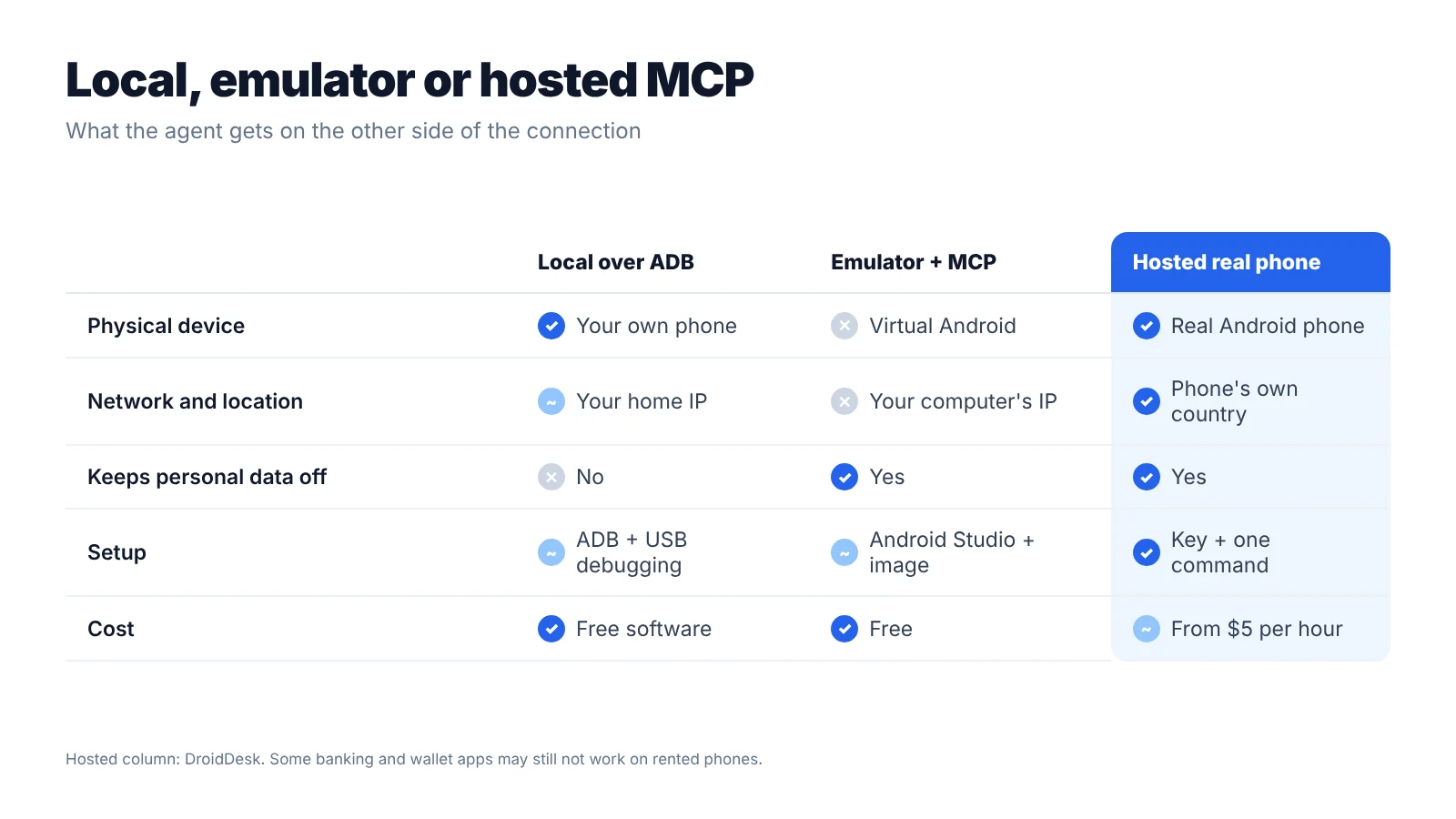
Local, emulator or hosted: comparison
| Factor | Local MCP over ADB | Emulator + MCP | Hosted MCP on a real phone (DroidDesk) |
|---|---|---|---|
| Device | Your own phone | Virtual Android | Physical Android phone |
| Setup | ADB, USB debugging, local server | Android Studio, emulator image | Access key + one client command |
| Network and location | Your home IP | Your computer's IP | Mobile or residential connection in the phone's country |
| Play Integrity / app compatibility | Usually passes | Often limited | Real device; some banking and wallet apps may still not work |
| Your personal data at risk | Yes | No | No |
| Cost | Free software, your hardware | Free | Rental from $5 per hour |
| Best for | Local prototyping | Fast UI checks in development | Real-device tasks, geo checks, work you can't do from home |
How DroidDesk's hosted MCP works
There's one endpoint, and it uses Streamable HTTP:
https://api.mobirent.io/mcpGetting from zero to a working agent takes four steps.
- Rent a phone. Filter by country, city and network. The 1 Hour and 3 Hour plans are browser-only. Google Play comes with the 1 Day plan and up. APK installs and eSIM come with the 1 Week and monthly plans, or with the Full Access add-on (+$10) on the 3 Hour and 1 Day plans. The plans page and the app installation guide have the details.
- Create an access key. In the dashboard, go to AI & Tasks → AI / MCP. Keys start with
dd_live_and you'll only see each one once, so copy it right away. A key can be view-only or allow control, and it can cover one phone or your current and future rentals. - Add the server to your client. The commands are below.
- Ask the agent to call
get_started. It reports which phones and tools the key can reach, which saves you from debugging permissions in the middle of a real task.
For Claude Code:
claude mcp add --transport http droiddesk https://api.mobirent.io/mcp \
  --header "Authorization: Bearer dd_live_YOUR_KEY"
For Cursor, add a droiddesk entry to ~/.cursor/mcp.json:
{
  "mcpServers": {
    "droiddesk": {
      "url": "https://api.mobirent.io/mcp",
      "headers": { "Authorization": "Bearer dd_live_YOUR_KEY" }
    }
  }
}
For Codex, add a [mcp_servers.droiddesk] section to ~/.codex/config.toml with the same URL and bearer_token_env_var = "DROIDDESK_API_KEY". Put your key in that environment variable and restart Codex.
Everything else is in the AI & API documentation. If you want to watch the phone while the agent works, open it in your browser or set up the desktop client.
What the agent can do on the phone
The tools fall into four groups:
- Devices:
list_phones,phone_status,phone_info,list_available_phones. - Screen and actions:
get_screen,screenshot,tap,type_text,swipe,press_key,launch_app,open_url,wait_for. - Templates and scenarios:
save_template,run_template,run_scenarioand a few related tools. - Files, SMS and CAPTCHA: uploads up to 100 MiB, SMS orders through your own SMSPool or TextVerified account, and a limited set of CAPTCHA types.
Most people skip past templates at first, and they shouldn't. Once the agent gets a task right, you can save those exact steps and run them again from the dashboard without AI. No model tokens, no surprises, the same sequence each time. A one-off experiment becomes something you can repeat tomorrow on another phone. Our phone farm software guide shows how far that idea goes.
What do people actually use a hosted Android MCP server for? A few common first tasks:
- Checking an app in another market. The store listing, prices, language and onboarding as a local user sees them. Our guide to changing a phone's IP and location to another country explains why a real local phone matters here.
- Testing your own app on real hardware. See AI mobile testing on real devices and the app testing use case.
- Giving an always-on agent a phone of its own. For example, connecting OpenClaw to an Android device.
Limits worth knowing before you start
A hosted server is convenient, but it has rules. Knowing them up front saves a lot of confused retries:
- Each phone allows 4 screen reads per second, 20 screenshots per minute and 5 actions per second.
- Actions on one phone run one after another. If you need parallel work, you need more phones.
- If the screen changed since the agent last looked, the action comes back as
stale_snapshotand nothing gets tapped. It's annoying the first time and reassuring every time after. - Swipes are vertical for now.
- A screen read returns up to 300 elements, so very dense screens get trimmed.
- Screenshot-based tasks need a client and model that can read images.
- When a rental ends, apps installed during it are removed, app and browser data (cookies, history, logins) is cleared, and your files on the phone are deleted.
That last point includes files, so it's worth quoting directly:
“Files you upload or download to the device are deleted automatically when the rental ends.”
— DroidDesk Help Center, What Happens to Your Data After a Rental Ends?
So if the agent downloads a report or anything else you want to keep, save it before the session ends.
When a local MCP server is the better choice
We'd rather you pick the right tool than rent a phone you don't need. Stay local if:
- you only need to click through your own debug build on a phone you already own;
- you want to tinker with the open-source servers and read their code;
- your tests need ADB-level access, such as logcat, shell commands or Appium (DroidDesk doesn't expose ADB);
- you need iOS too.
A real phone makes sense when the task depends on hardware, a carrier network or a specific country, or when it simply shouldn't run on your personal device.
Security: treat the key like a password
An agent with control access can do anything you could do on that phone. Start with a view-only key, limit it to one device, and switch to control once the workflow behaves. Spending money is fenced off separately:
“Paid rentals require separate permission and a per-order limit.”
— DroidDesk, AI & API documentation
If a key ever ends up in a shared repo or a chat, revoke it and make a new one. It takes a minute. You can read more about how DroidDesk protects user data, and the Acceptable Use Policy covers what's allowed when you automate third-party apps.
Give your agent a real phone
If all your agent needs is to click through a local build, a free ADB server is fine. When the job needs a real device in another country, a mobile network, or simply shouldn't happen on your own phone, a hosted Android MCP server is the easier path.
Give your AI agent a real Android phone in the country you need, from $5 per hour
Rent a phone and connect it to your AIFrequently asked questions
Is there a free Android MCP server?
Yes. mobile-mcp, Android-MCP and adb-mcp are free and open source. They run over ADB with your own phone or an emulator, so you only pay for the hardware and your AI client.
Can I use an Android MCP server without ADB?
With a hosted server, yes. DroidDesk's MCP runs over HTTPS with an access key. You never touch USB debugging or drivers.
Does mobile MCP work with Claude Code, Cursor and Codex?
Any client that supports remote MCP servers can connect. DroidDesk has setup guides for Claude Code, Cursor and Codex. Direct ChatGPT integration hasn't been verified yet.
Is an android emulator MCP setup enough for testing?
For layout and logic checks during development, often it is. Anything that depends on Play Integrity, a SIM, GPS or the carrier network should also be checked on a real device.
Will apps notice that an AI is controlling the phone?
The phone is real hardware on a real network. What can stand out is behaviour: perfectly even timing or impossible speed. Keep tasks at a human pace, look at app compatibility and limitations before you start, and follow each platform's terms.
How much does it cost to give an agent a real phone?
Rentals start at $5 per hour for browser-only access, $15 for a day and $60 for a week. MCP access is included, and your AI provider bills model usage separately. The DroidDesk FAQ covers billing questions.