
People mean three different things by "OpenClaw Android." Some want the official Android app so they can talk to their agent from the couch. Some want to run the OpenClaw gateway itself on an old phone through Termux. And some want OpenClaw to actually use an Android phone, opening apps and tapping through them. Only that last setup turns OpenClaw into an Android AI agent, and it's also the one where you need to think hardest about which phone you give it.
If you've searched for OpenClaw Android, you've probably noticed the guides don't agree. One says install an app from Google Play. Another has you pasting Linux commands into Termux. A third talks about ADB and accessibility services. They're not contradicting each other, they're answering different questions:
- Can I talk to my OpenClaw agent from my phone?
- Can I run OpenClaw on an Android phone instead of a server?
- Can OpenClaw control an Android phone and use its apps?
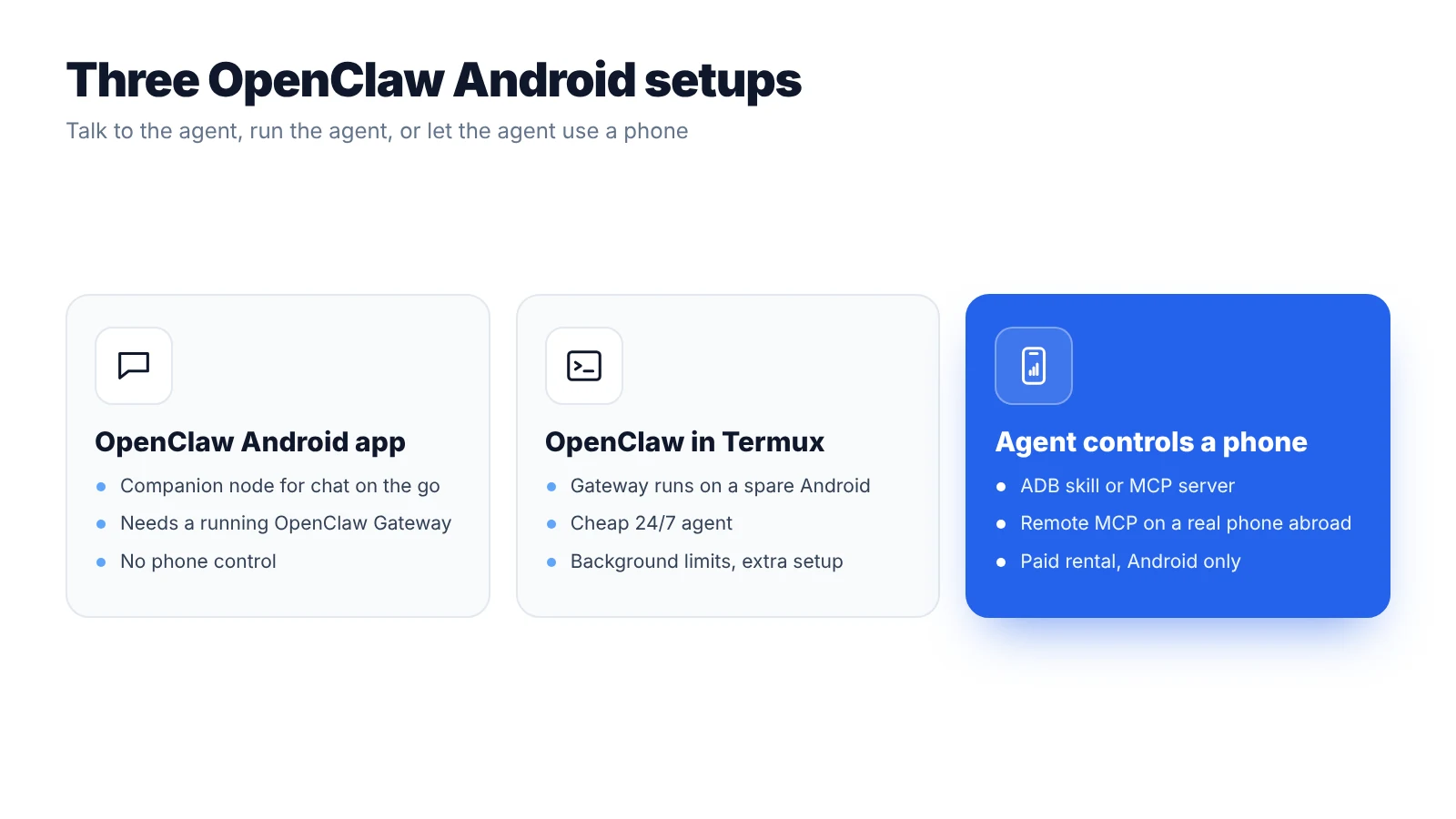
- Talk to your agent on the go: install the OpenClaw Android app and pair it with your gateway.
- A cheap always-on server: run the gateway on a spare phone with an OpenClaw Termux installer.
- An agent that operates a phone: connect OpenClaw to a phone over MCP, ideally a rented real device rather than your own.
Setup 1: the OpenClaw Android app
The OpenClaw Android app (there's an iOS version too) is the official companion app, with chat, voice and Canvas. You can get it from Google Play or as a signed APK from GitHub releases. The one thing it doesn't do is run the agent. The docs say so plainly:
“It is a companion node and requires a running OpenClaw Gateway.”
— OpenClaw documentation, Android app
So the gateway lives on macOS, Linux, Windows (via WSL2) or a VPS, and the phone pairs with it. You approve new devices from the gateway machine with openclaw devices list and openclaw devices approve. If you're pairing remotely over Tailscale or a public host, the app needs a secure endpoint, and openclaw gateway --tailscale serve is the usual way to get one. After pairing, the app keeps its connection open through a foreground service, which is why you'll see a notification that never goes away.
This is the right choice if your agent already runs on a computer and you just want to message it, switch sessions or check results when you're away from your desk. It isn't built for letting the agent tap through other apps on your phone.
Setup 2: running OpenClaw on an Android phone
An old Android phone makes a surprisingly decent low-power server. Community OpenClaw Termux installers set up a Linux environment, add Node.js, install OpenClaw globally and start the gateway with openclaw gateway. After that, the dashboard opens in the phone's browser on a local port. If typing commands isn't your thing, packaged apps such as Kimi Claw wrap the whole process for you.
It's a nice way to get a 24/7 agent without paying for a VPS. Expect a typical OpenClaw Android install through Termux to need a few gigabytes of free storage.
There are trade-offs. The phone has to stay plugged in and online. Android likes to kill background processes. And out of the box, Termux can't tap or swipe in other apps. Giving the agent screen control means extra steps such as wireless debugging and a self-ADB connection, which is a lot of access to hand over on a phone that also holds your accounts.
Setup 3: letting OpenClaw control an Android phone
This is what most people picture when they hear Android AI agent: the agent opens apps, reads the screen and gets things done the way you would. There are three common ways to make that happen.
ADB-based skills and MCP servers
Community skills and MCP servers drive a phone over ADB and UIAutomator. They can take screenshots, tap, swipe, launch apps and sometimes handle calls and SMS. They work well with a phone on your desk or on the same Wi-Fi. Our Android MCP server guide compares the main ones.
Accessibility-service apps
Some projects skip ADB and install an Android app with an accessibility service that exposes an HTTP API for control. Setup is easier, but you're giving a third-party app very broad permissions on the device.
A remote MCP server on a real phone
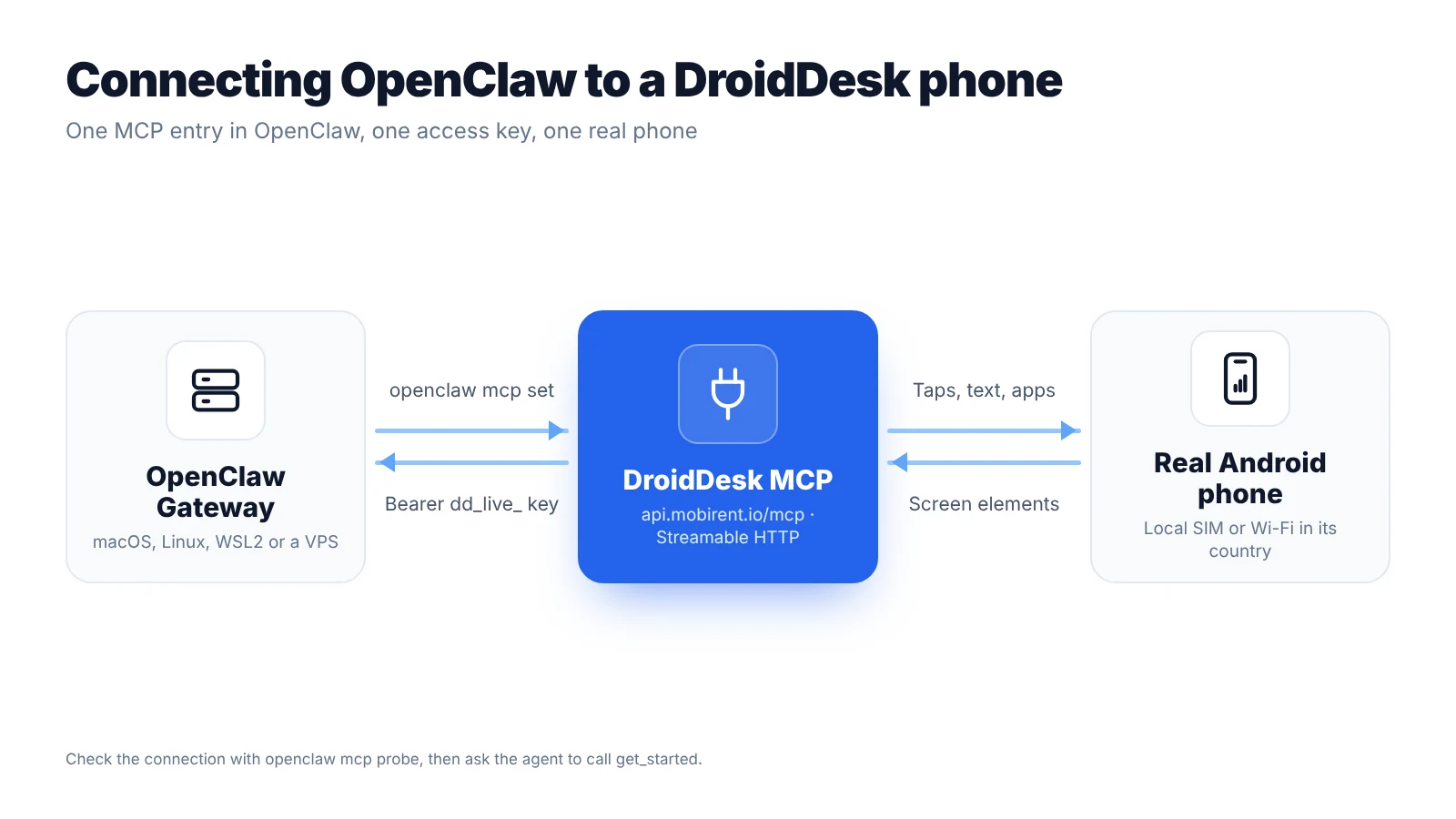
OpenClaw supports third-party MCP servers, including remote ones over Streamable HTTP, so adding one is a single command. That means it can work with a phone hosted somewhere else, with nothing installed on the handset. DroidDesk offers exactly that for real Android phones you rent by the hour, day, week or month. MCP access is included in the rental.
Comparison: which OpenClaw Android setup fits
| Goal | Setup | What runs where | Main trade-off |
|---|---|---|---|
| Chat with your agent on the go | OpenClaw Android app | Gateway on your computer or VPS, app on your phone | No phone control |
| Cheap 24/7 agent | OpenClaw in Termux | Gateway on a spare Android | Background limits, extra setup for screen control |
| Agent uses a phone on your desk | ADB skill or MCP server | Agent on your computer, phone via USB/Wi-Fi | Uses your device, IP and accounts |
| Agent uses a phone in another country | Remote MCP (DroidDesk) | Agent anywhere, real phone hosted remotely | Paid rental, Android only |
How to connect OpenClaw to a DroidDesk phone
A quick note before the steps. DroidDesk's official setup guides cover Claude Code, Cursor and Codex. OpenClaw isn't on that list yet, but it speaks the same remote MCP standard, so it should work. Test the connection before you build anything important on it.
1. Rent a phone and create a key. Pick a device on droiddesk.io and a plan from the plans page. In your dashboard, go to AI & Tasks → AI / MCP, create an access key and copy it straight away, because it's only shown once. A key limited to one phone is a sensible start.
2. Store the key in your gateway's environment, for example as DROIDDESK_API_KEY.
3. Add the server to OpenClaw. To add an MCP server in OpenClaw (openclaw mcp add or openclaw mcp set), give it the remote URL and your key:
openclaw mcp set droiddesk '{"url":"https://api.mobirent.io/mcp","transport":"streamable-http","headers":{"Authorization":"Bearer ${DROIDDESK_API_KEY}"}}'Don't skip the transport field. Without it OpenClaw falls back to SSE, while the DroidDesk endpoint is documented for Streamable HTTP. The ${DROIDDESK_API_KEY} reference also keeps the key itself out of your config file.
4. Check that it works. OpenClaw's docs say to stop the gateway before you probe a server, then start it again:
openclaw mcp probe droiddeskThe probe opens a live connection and should list tools like get_screen, tap, type_text and launch_app. If nothing shows up, openclaw mcp status --verbose tells you how the server was saved. Once tools load, ask the agent to call get_started, then give it a first task. The full tool list is in the DroidDesk AI & API documentation.
If something doesn't work
Most problems come down to a handful of causes:
- No tools in the list. Check that
transportisstreamable-httpand that the header readsBearerfollowed by your key. - Tools load, but actions fail. The key is probably view-only or tied to a different phone. Ask the agent to call
get_startedand it will tell you what the key allows. - Taps get refused. If the screen changed between reading and acting, DroidDesk returns
stale_snapshotinstead of tapping blind. The agent just needs to read the screen again. - Everything feels slow. Each phone runs one action at a time, with up to 5 actions per second and 20 screenshots per minute. Text screen reads are much quicker than screenshots.
What OpenClaw can do with a rented phone
Once it's connected, OpenClaw can use the phone much like you would in the browser. A few things people set it up for:
- Looking at apps in another market. The phone sits on a local SIM or Wi-Fi connection (how the connection works), and you can grant location access to apps when they ask.
- Routine jobs in your own accounts. Reading messages, posting content you've prepared, collecting information from app screens.
- Testing your own app. Install a build with the app installation guide and let the agent walk the flow. There's more on this in AI mobile testing on real devices.
- Verification steps. SMS codes can come through your own SMSPool or TextVerified account, and some CAPTCHA types are supported.
When a flow works, save it as a template and run it from the dashboard without AI next time. Your model bill stops at the first run. We describe the same idea for bigger setups in our phone farm software guide.
Safety rules for an agent with a phone
An agent that can use a phone can also send messages, change settings or spend money inside apps. That's not a reason to avoid it, just a reason to set some ground rules:
- Keep experimental agents off your personal phone. A rented device only holds what you put on it. When the rental ends, installed apps are removed, app and browser data is cleared and your files are deleted, so save anything you need before the rental ends (details).
- Start view-only. A DroidDesk key can be limited to viewing. Move to control access once the workflow behaves predictably.
- Keep the scope small. Tie the key to one phone. Renting new phones through MCP is restricted separately:
“Paid rentals require separate permission and a per-order limit.”
— DroidDesk AI & API documentation
- Revoke without hesitation. If a key turns up in a log or a shared chat, revoke it and make a new one. Here's how DroidDesk protects user data.
- Play by the rules. Automation still has to follow each app's terms and the DroidDesk Acceptable Use Policy.
When OpenClaw on your own phone is the better choice
You don't always need a rented device. Hardware you already own is fine when:
- the agent only needs chat, voice and notifications, which the official app covers;
- you're experimenting with Termux and don't need the agent to touch other apps;
- the task genuinely needs your personal accounts and contacts, and you're comfortable with the risk;
- you need iOS.
A rented phone makes more sense when the agent has to act inside apps, work in another country, or anywhere a mistake shouldn't land on your own device.
Give OpenClaw its own Android phone
Setting up OpenClaw on a spare phone is a fun weekend project. Letting it loose on your personal phone is a risk most people shouldn't take. A rented real device gives the agent its own phone to work on, one you can watch, limit and reset without touching yours.
Give OpenClaw its own real Android phone instead of yours, from $5 per hour
See how AI phone automation worksFrequently asked questions
Can OpenClaw run on Android without root?
Yes. Termux-based setups run the gateway without root. Controlling other apps on the same phone usually needs extra steps, like wireless debugging, an ADB connection or an accessibility-service app.
Is the OpenClaw Android app the same as running OpenClaw on Android?
No. The official app is a companion node and needs a gateway running somewhere else. Running OpenClaw on the phone means installing the gateway itself, usually through Termux.
How do I add an MCP server to OpenClaw?
Run openclaw mcp set with a JSON config that includes the server URL, "transport": "streamable-http" and an Authorization header. Then run openclaw mcp probe to make sure the tools load.
Can OpenClaw use a phone in another country?
Yes, as long as the phone is there. A rented DroidDesk phone uses a local connection in its country, which helps with local apps, store listings and other IP- or location-dependent tasks.
Will banking or wallet apps work?
Not always. Some high-security apps block rented devices even though the hardware is real. Check app compatibility and limitations before you plan a task around them.
How much does it cost?
Rentals start at $5 per hour for browser-only access, $15 for a day and $60 for a week, and MCP access is included. OpenClaw itself is open source; your model provider bills usage separately. The DroidDesk FAQ has billing details.