
AI mobile testing means letting an agent use your app the way a tester would. You describe a flow in plain English, the agent works through the screens, takes screenshots and tells you what broke. With Claude Code there are two practical ways to set this up: Appium MCP for devices you control, and a hosted MCP for real phones somewhere else.
Here's a familiar story. Every test passes on the emulator, the release goes out, and two days later a user in Brazil writes in: on their Samsung, the keyboard covers the checkout button. Nobody wrote a test for that phone, that language and that network, so of course nothing caught it. AI mobile app testing won't replace your test suite. What it can do is cover the messy edges around it without someone scripting every case by hand.
- Device on your desk or in CI: Appium MCP. It needs ADB-level access and can write test code for you.
- Physical phone, mobile network or a specific country: a hosted MCP on a real device, such as DroidDesk.
- Most teams end up with both: Appium for regression, a rented phone for the bugs that won't reproduce locally.
This guide covers AI mobile app testing with both options. If MCP itself is new to you, the Android MCP server guide is a good primer.
What AI mobile testing does well
Let's be clear about expectations first. AI agents for mobile app testing are not a substitute for a test suite. They shine in exactly the places where scripts are clumsy:
- Exploratory passes. Tell the agent "open the app as a new user and try to reach the paywall" and it will work around cookie banners, permission prompts and dialogs nobody planned for.
- Reproducing bug reports. Paste the user's message and let the agent follow the steps, with screenshots of what it sees.
- Checking other markets. Is the currency right in Japan? Is the store listing translated? Does a feature that should be geo-blocked actually stay hidden?
- Smoke tests after a release. One quick, human-style run through the critical path before you announce the update.
- Turning a working flow into code. Once the agent gets through a flow, it can draft the Appium or Espresso test for it.
Where is AI in mobile testing still weak? Pixel-level visual regressions, performance numbers, and anything that needs hundreds of runs an hour. Agents also misread crowded screens now and then, or take the scenic route to a button. Keep those jobs in your normal pipeline.
Option 1: Appium MCP for local devices and CI
Appium MCP (the appium/appium-mcp project, also listed as MCP Appium) gives an AI client a set of Appium tools: find elements, tap, type, install apps and generate test code. The project describes its own scope like this:
“MCP server for Mobile Development and Automation | iOS, Android, Simulator, Emulator, and Real Devices”
— Appium MCP README
Adding the Appium MCP server to Claude Code is one line:
claude mcp add appium-mcp -- npx -y appium-mcp@latestAfter that you describe your devices in a capabilities.json file (app path, device name, platform version, with UiAutomator2 as the automation engine) and point the CAPABILITIES_CONFIG environment variable at it. For Android you'll also need the Android SDK on your PATH and USB debugging turned on.
Teams like it because it plugs into the Appium setup they already have, it can export a working session as test code, and it runs in CI.
The limits come from Appium itself. It needs ADB-level access, so the phone has to be on your desk, in your own device lab, or in a testing cloud that exposes Appium endpoints. And because your tests run from your office network, anything tied to location stays invisible.
Option 2: a hosted MCP on a real phone
Some questions just can't be answered from your desk. How does the app behave on mobile data in Mexico? Does sign-up go through on a physical Samsung that's never had developer options enabled? What does the store page look like to someone in India?
For those checks you can connect Claude Code to a real Android phone rented on DroidDesk. There's no ADB and no Appium server in between. The agent talks to DroidDesk's MCP endpoint, reads the screen, taps, types and takes screenshots. The phone uses its own SIM or local Wi-Fi in its country (how the connection works) and runs its original firmware (device integrity explained).
claude mcp add --transport http droiddesk https://api.mobirent.io/mcp \
  --header "Authorization: Bearer dd_live_YOUR_KEY"
You can install your app from Google Play (1 Day plan and up) or sideload an APK (1 Week plan, or the Full Access add-on for +$10 on the 3 Hour and 1 Day plans). The app installation guide has the steps. One detail catches people out:
“Full Access is not available on the 1 Hour plan.”
— DroidDesk Help Center, Installing Apps on a Remote Phone
So for anything beyond browser checks, book at least a day.
Appium MCP vs hosted real-device MCP
| Factor | Appium MCP | Hosted MCP on a real phone (DroidDesk) |
|---|---|---|
| Device access | ADB / UiAutomator2, local or Appium cloud | HTTPS endpoint + access key |
| Devices | Your emulators and phones | Physical Android phones in many countries |
| Network | Your network | SIM or local connection in the phone's country |
| Setup time | SDK, drivers, capabilities file | One command and a key |
| Test code generation | Yes | No; save working steps as templates instead |
| CI grids and parallel runs | Yes, with your own infrastructure | Not designed for CI grids |
| iOS | Yes | No, Android only |
| Best for | Regression suites, dev loops | Exploratory, geo and real-device checks |
These aren't competing choices. Plenty of teams keep Appium for regression and rent a real phone for the cases they can't reproduce in-house. Claude Code can have both servers connected at once.
A practical AI mobile testing workflow in Claude Code
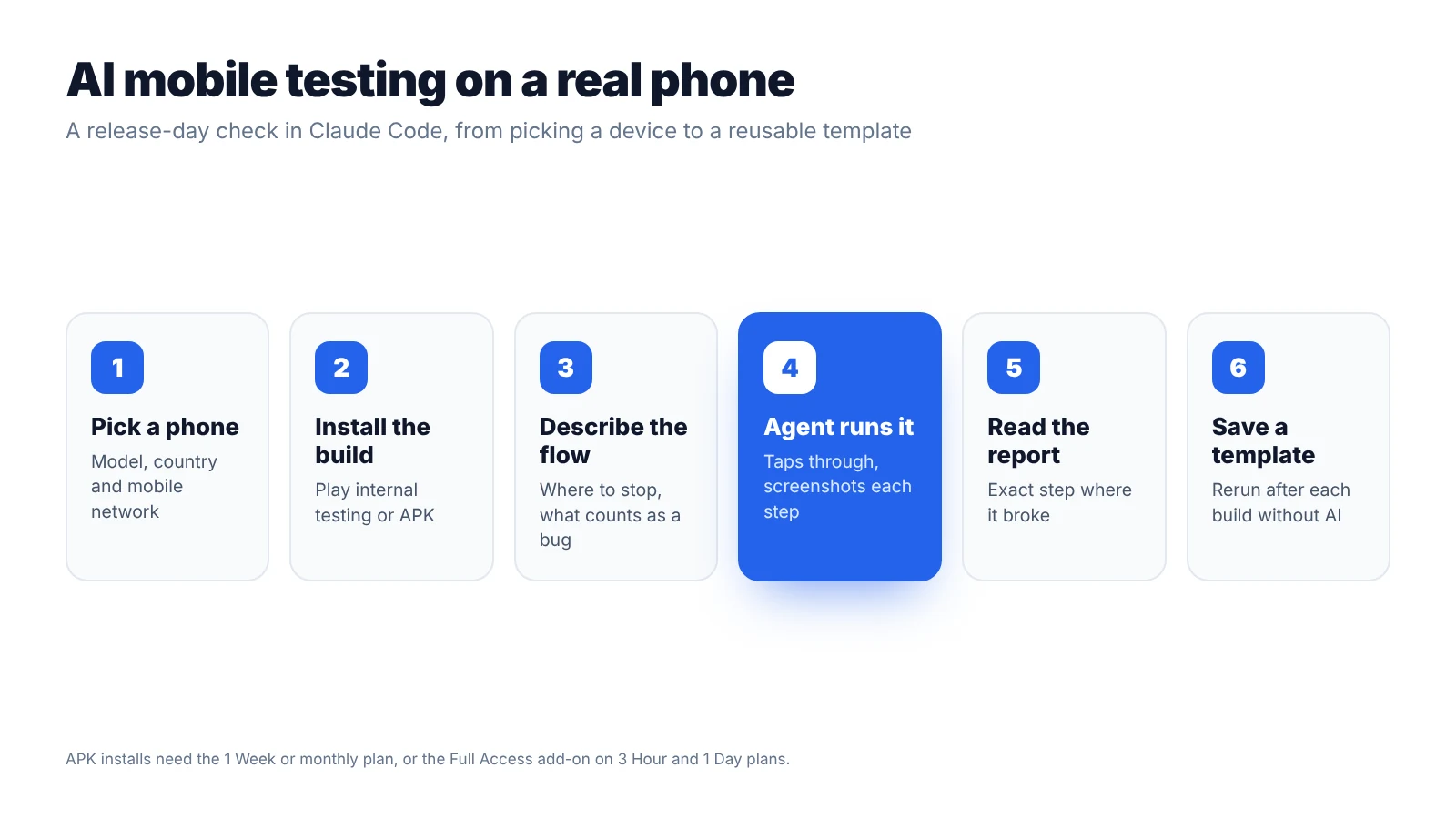
This is roughly how a release-day check looks in practice.
- Ask the agent to call
list_available_phonesand pick, say, a Samsung on mobile data in the target country. - Install the release candidate, either through Google Play internal testing or as an APK.
- If the app will ask for location, follow the geo-location guide to grant access during a remote session.
- Describe the flow. For example: "Open the app, create an account with a test email, add the first item to the cart and stop at the payment screen. Take a screenshot at each step and list anything that looks broken."
- If you're curious, open the same phone in your browser and watch it work.
- Read the report. Each action returns the new screen, so the agent can point at the exact step where things went wrong.
- If the flow worked, save it as a template. After the next build you can rerun it from the dashboard without AI.
Need an SMS code along the way? The agent can order a number through your own SMSPool or TextVerified account. If verification keeps failing on emulators, this breakdown of how antifraud treats emulators during registration explains why.
How to write a good test prompt
Your prompt is the test case, so it deserves a bit of care. A few habits make a big difference:
- Say where to stop. "Stop at the payment screen" keeps the agent from going further than you want.
- Ask for evidence: a screenshot after each step and a short list of anything unexpected.
- Hand over the test data (email, promo code, address) instead of letting the agent make it up.
- Spell out what counts as a bug. Overlapping buttons, untranslated strings, the wrong currency, a crash. If you don't name it, the agent may not flag it.
What a real device catches that an emulator misses
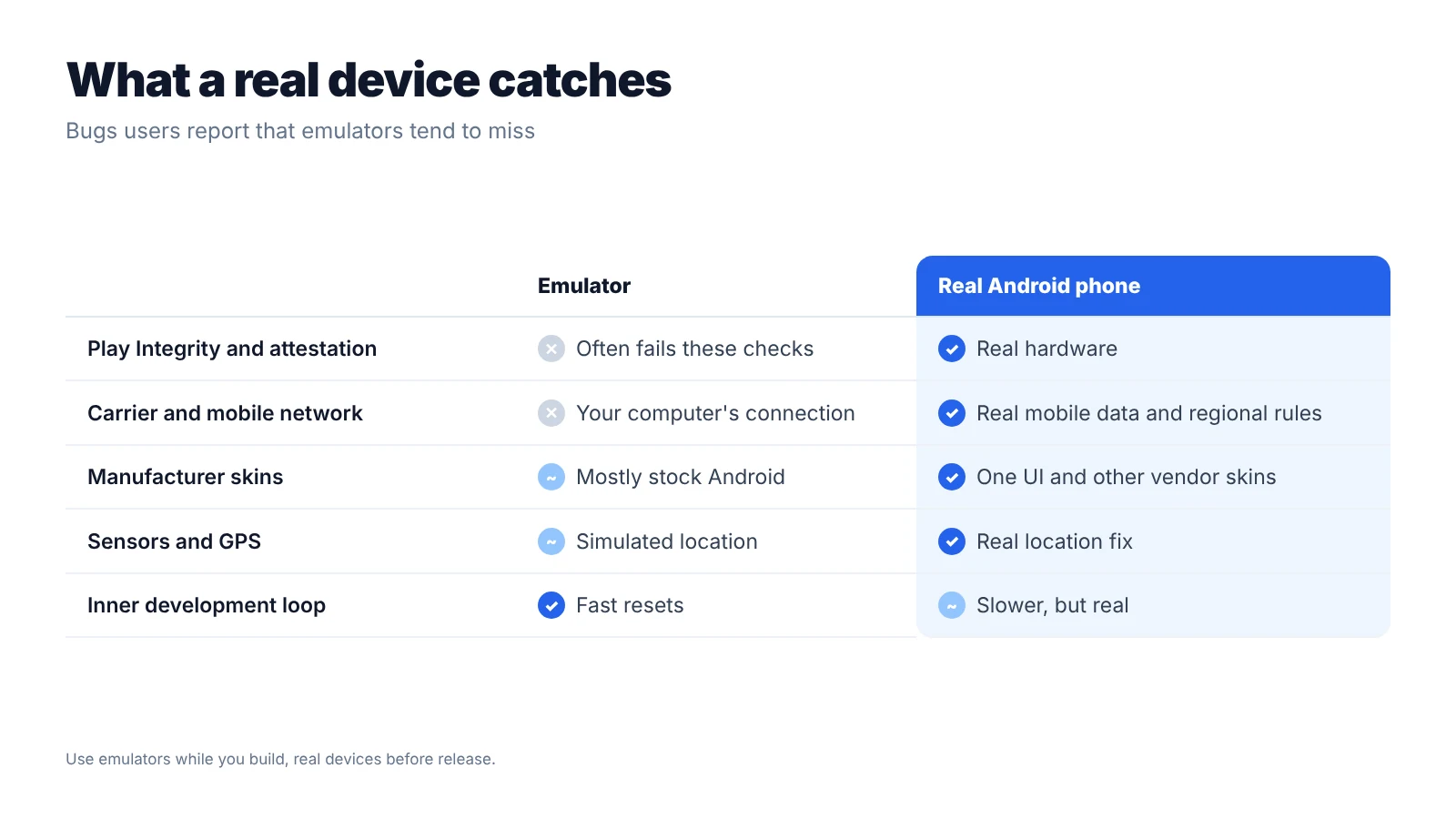
Emulators are great for the inner development loop. They're much weaker at the bugs users actually send you:
- Play Integrity and attestation. Payment, banking and some login flows simply refuse to run on devices that fail these checks.
- Carrier and network behaviour. Slow mobile data, carrier-level blocks, IP-based regional rules.
- Manufacturer skins. Samsung's One UI and others change the keyboard, permission dialogs and background limits.
- Sensors and GPS. Location prompts and map features behave differently with a real fix.
If you want the long version, see Android emulator online vs real device and our overview of a real Android device cloud.
What about Claude Code in Android Studio?
Plenty of Android developers already run Claude Code in the Android Studio terminal. It reads Gradle files, fixes Kotlin and runs builds like it would in any codebase. MCP adds the missing half: the same agent can install that build on a phone and check the result, instead of stopping at "build succeeded."
When a device cloud or your own lab is the better choice
A rented phone over MCP isn't the answer to every testing problem. Go another way if:
- you need hundreds of parallel runs in CI (a dedicated device-testing cloud is built for that);
- you need iOS coverage;
- your tests rely on ADB, logcat or instrumentation;
- you need the device physically in your hands for hardware debugging.
Where a real phone over MCP earns its place is exploratory, geo and release-day checks that a script or an emulator would miss.
Limits to plan for
- Actions on one phone run one at a time. For parallel work, use more phones.
- Each phone allows up to 5 actions per second and 20 screenshots per minute.
- A screen read returns at most 300 elements.
- Swipes are vertical for now.
- Banking, wallet and other high-security apps may block rented devices. Check app compatibility and limitations first.
- When the rental ends, installed apps are removed, app and browser data is cleared and your files on the phone are deleted (details), so plan a fresh install each session and save any reports or screenshots before it ends.
Test on the phone your users actually hold
Emulators are perfect for day-to-day development. When a bug only shows up on real hardware or in another country, hand your agent a real device and let it walk the flow for you.
Test your app on a real Android phone your users actually hold, from $5 per hour
Set up AI testing on a real Android phoneFrequently asked questions
Is AI mobile testing reliable enough to replace scripted tests?
Not yet. Mobile app testing with AI is at its best for exploratory passes, bug reproduction and smoke checks. Deterministic regression tests still belong in Appium, Espresso or something similar.
Can I use Appium MCP with a DroidDesk phone?
Not directly. DroidDesk doesn't expose ADB, which Appium needs. Use Appium MCP for local devices and DroidDesk's own MCP server for rented phones. Claude Code can have both connected at once.
What's the difference between Appium and AI mobile testing?
Appium runs steps you scripted in advance. With AI mobile testing, the agent decides the next step from what's on the screen. Appium MCP sits in between: the agent drives Appium and can export what it did as test code.
Which AI clients are supported?
DroidDesk has setup guides for Claude Code, Cursor and Codex in its AI & API documentation. Any client that supports remote MCP servers with a bearer header should work too.
Can I test an app that's only available in another country?
Yes, if you rent a phone in that country. It uses a local SIM or Wi-Fi connection, so the store and the app see a local user. More on that in changing a phone's IP and location.
How much does a test session cost?
Browser-only access starts at $5 per hour. Google Play comes with the 1 Day plan (from $15), and APK installs need the 1 Week plan (from $60) or the +$10 Full Access add-on. MCP access is included; your AI provider bills separately. See plans and the FAQ.